Organising Windows windows
Windows 11 offers Snap Assist to help you organise application windows or multiple documents clearly, especially on large monitors. This offers different layouts and size divisions.
Layout suggestions
Variant 1: Maximise symbol
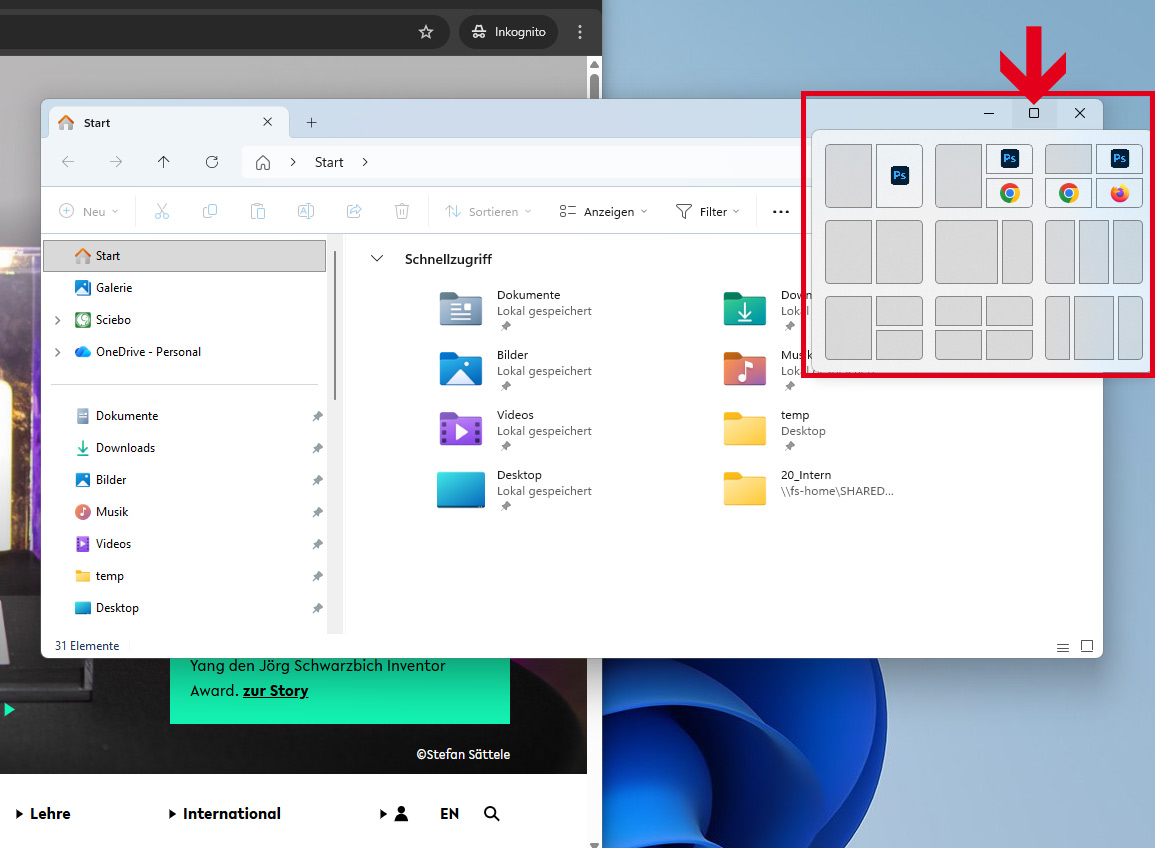
Hold the mouse pointer over the maximise symbol of a window (do not click). Various layout suggestions are displayed.
Then click on the grey area where the window should be placed.
In this example, the 2/3/1/3 layout is selected and the Explorer window is positioned to the right.
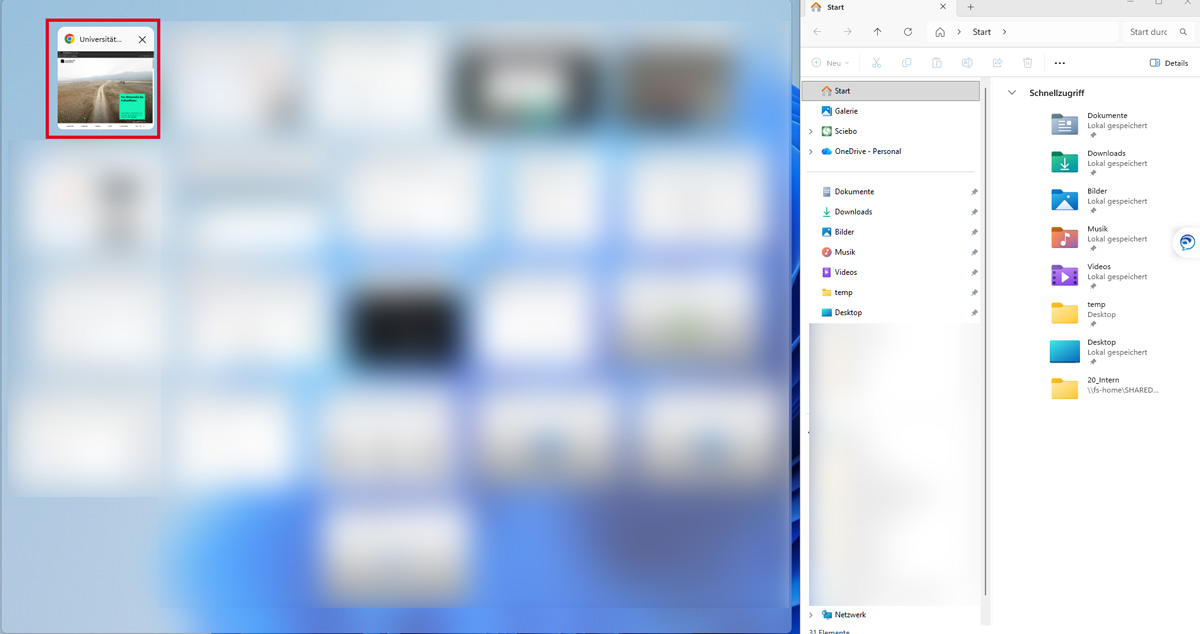
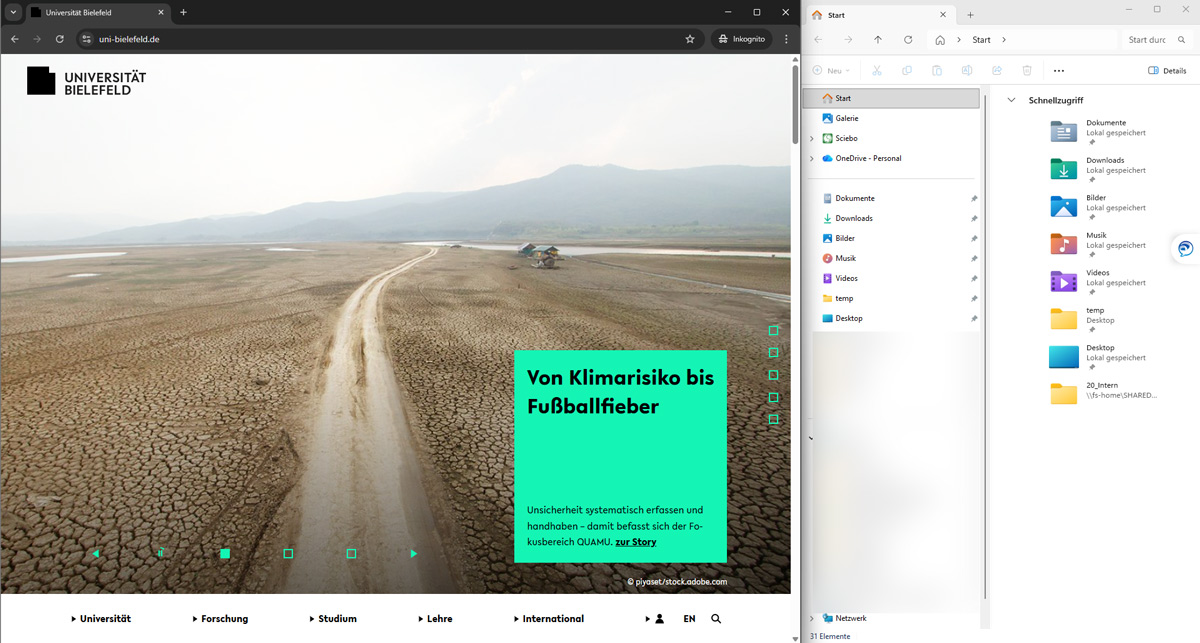
All open windows are now displayed in the left-hand area of the layout. We would like to place the browser with the Bielefeld University website here.
Variant 2: Selection bar at the top
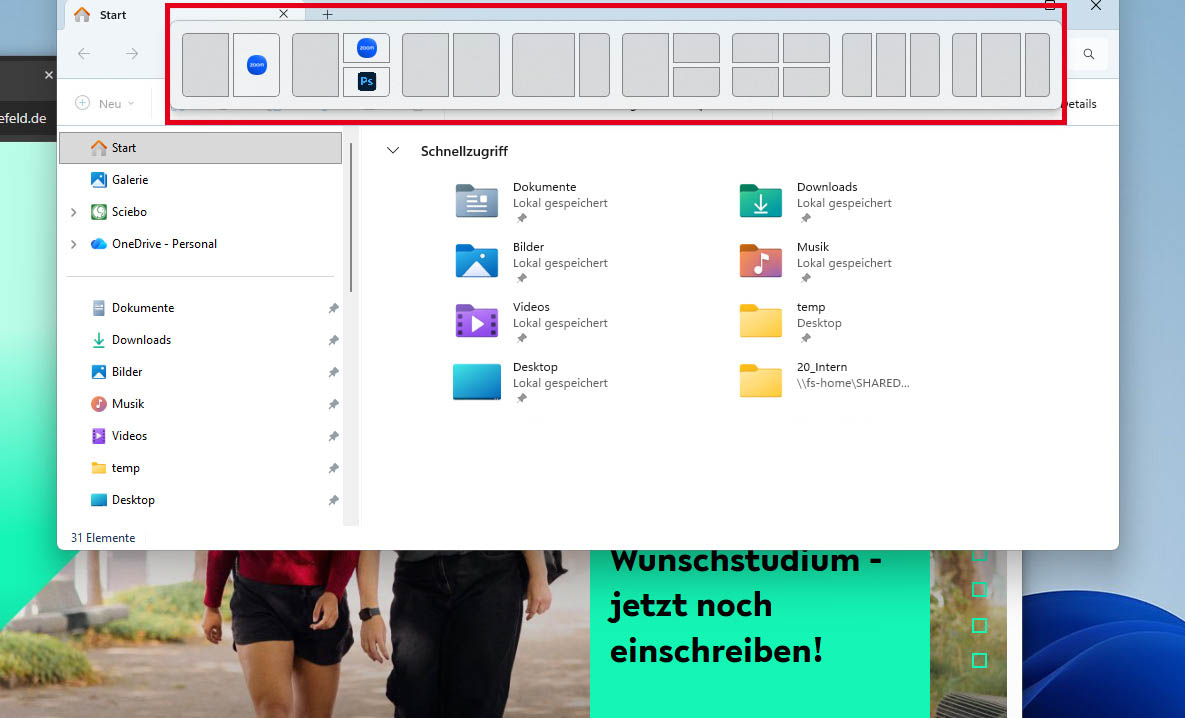
Use the mouse to drag a window to the top edge of the monitor. A grey bar appears first and then further layout suggestions are displayed.
The rest of the procedure is identical to variant 1 (see above).
Window docking
Variant 1: 2-person division
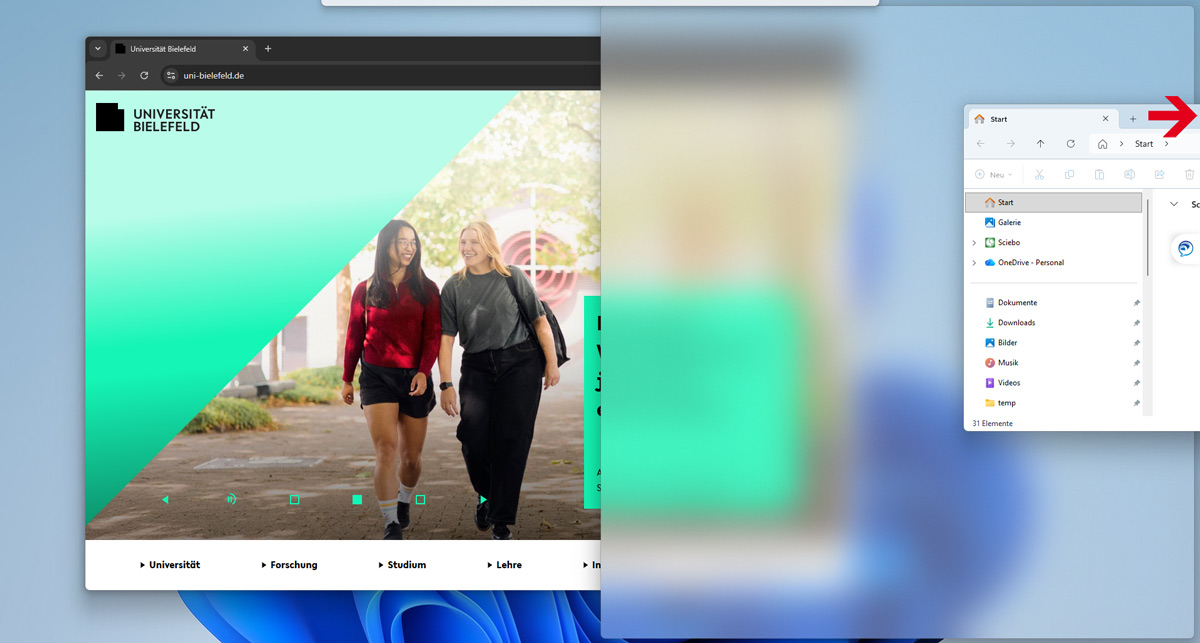
Drag a window with the mouse to the left or right edge of the monitor. A transparent area now appears on the corresponding half of the screen on which the window can be placed (release the mouse button).
A further window must/can then be selected for the other side.
Alternative:
Windows key + arrow key (left or right)
Variant 2: 4-way split
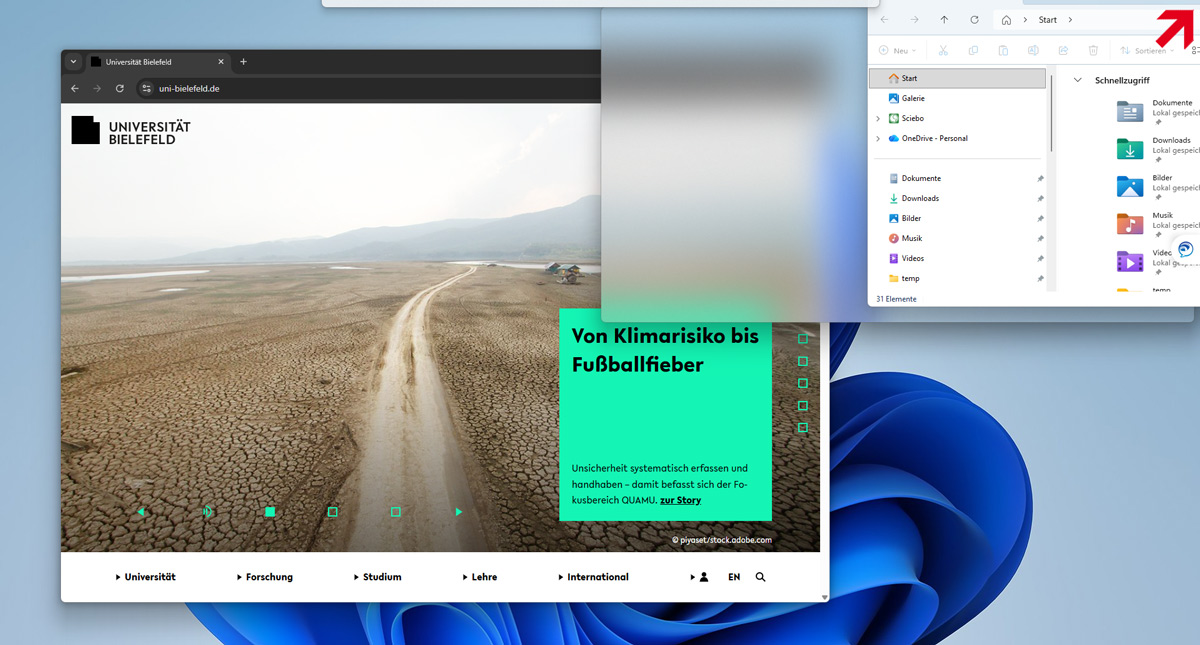
Drag a window with the mouse to a corner of the monitor. A transparent area now appears in the corresponding corner of the screen onto which the window can be placed (release the mouse button).
Further windows must/can then be selected for the other corners.
Further Windows settings
Various behaviour options can be set under "Dock window" via ms-settings:multitasking or Settings > System > Multitasking.
Optional for 34" monitors
If you want to use a 34" monitor from Dell with the behaviour of 2 monitors, you can set this on the monitor. We have separate instructions for this:
https://www.uni-bielefeld.de/einrichtungen/bits/services/as/it-arbeitsplatz/anleitung/monitor-aufteilen
This should not be used at workstations that are used by several people (shared desks).