Bielefelder IT-Servicezentrum


Scope of services
Description
The virus scanner Sophos Anti-Virus is available for free use to all university employees with an account. Use is permitted both privately (Home Premium) and for business (Intercept X).
Full details on purchase and use can be found on the extra web page on virus protection.
-> https://www.uni-bielefeld.de/einrichtungen/bits/services/aus/virenschutz/
Description
Students and employees of Bielefeld University can enjoy Office 365 Education Plus (Microsoft 365) from Microsoft free of charge.
The Office package can be installed on up to five personal PCs or Macs, as well as on five additional personal mobile devices such as Windows and Android tablets or the iPad®. The latest versions of Word, Excel, PowerPoint, OneNote, Outlook, Publisher and Access are always available.
The usage authorization is valid until the end of the studies or the end of the contract at Bielefeld University.
Private use for employees only
Microsoft 365 / Office 365 is not permitted for business use, but exclusively for private use. The same applies to the cloud service OneDrive offered therein. The university cloud sciebo is available for business use.
Acquisition
Registration and download for students and employees (private use only) at:
https://www.microsoft.com/de-de/education/products/office
The university e-mail address with the ending "uni-bielefeld.de" is required for this.
It may take up to one day for the licence to be fully activated.
If you have any questions about installation and use, Microsoft will be happy to help.
Important notes on installation and error messages
- Important: uncheck "Allow my organization to manage my device".
- Note on error 80180014
"A problem has occurred."
If this error message is displayed when opening an app, then the logon to it must first be disconnected again via:
Windows Start > Settings > Accounts > Access work or school account.
There, disconnect the corresponding "business or school account". Then open an Office 365 app again and follow this note when logging in.


Description of the
Employees of Bielefeld University can obtain a licence for Tungsten Power PDF Advanced for advanced PDF editing.
Acquisition
- Request a licence via the IT support team.
Please enter:
University email address
Windows or macOS,
computer name (e.g. uver-12345), if known. - A personal licence will then be issued, which still needs to be activated (see below).
Installation
The software is installed by the IT support team for supported devices.
Alternatively, manual installation:
- Windows
1.
Download and install: Download
Power PDF from https://uni-bielefeld.sciebo.de/s/DAj7RffT3Erdxre and unzip the files.Start the installation via the Setup.exe file and click on Install.
- macOS
1.
Download and install: Download
Power PDF from https://uni-bielefeld.sciebo.de/s/i9eYQx6pzPAeW99 and open the dmg file.Drag the Tungsten Power PDF icon into the Applications folder.


Activation / Registration
- Windows & macOS
1.

-> Start Power PDF.
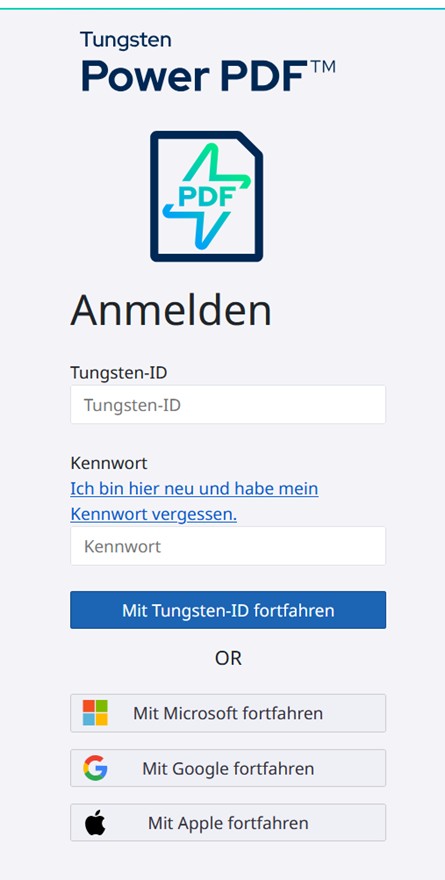
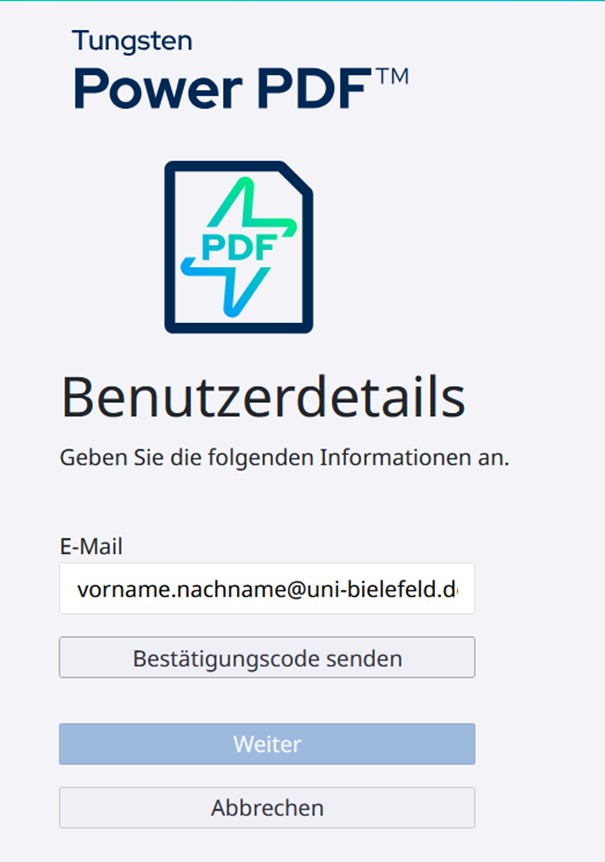
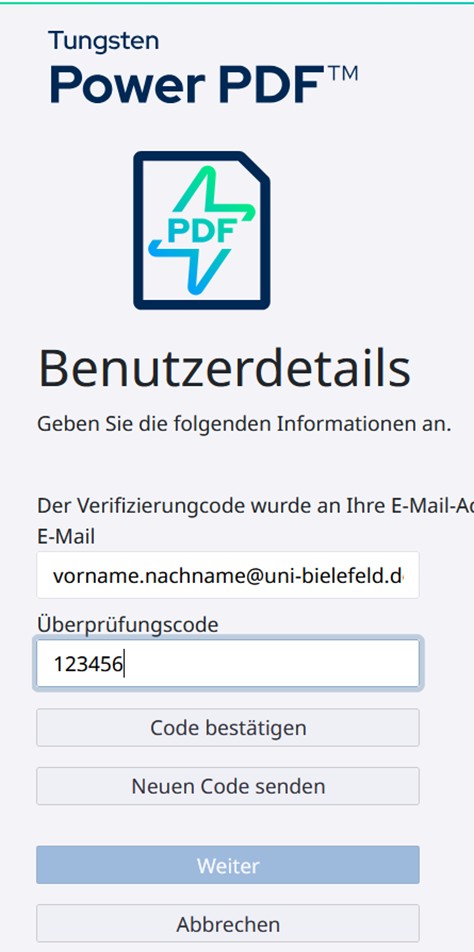
A browser window will open with a login page. Enter your university e-mail address there and click on"I am new here and have forgotten my password" the first time you use it.
Note:
If no browser window opens by itself, please open an active browser and search the different windows/tabs for the Power PDF page.


Instructions for functions
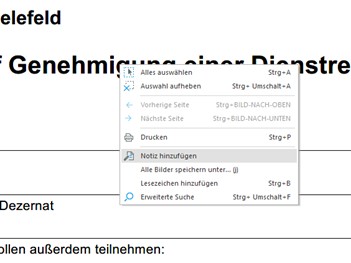
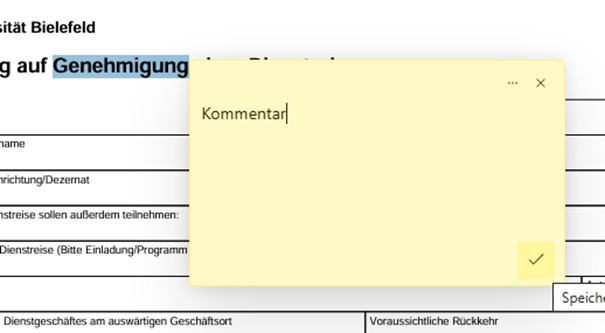
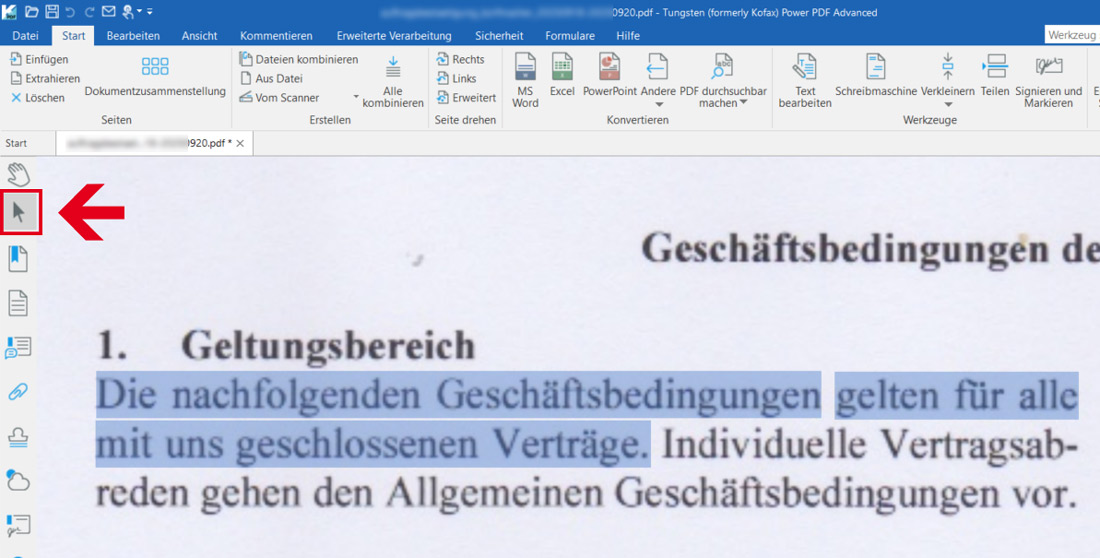
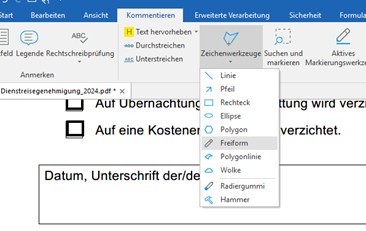
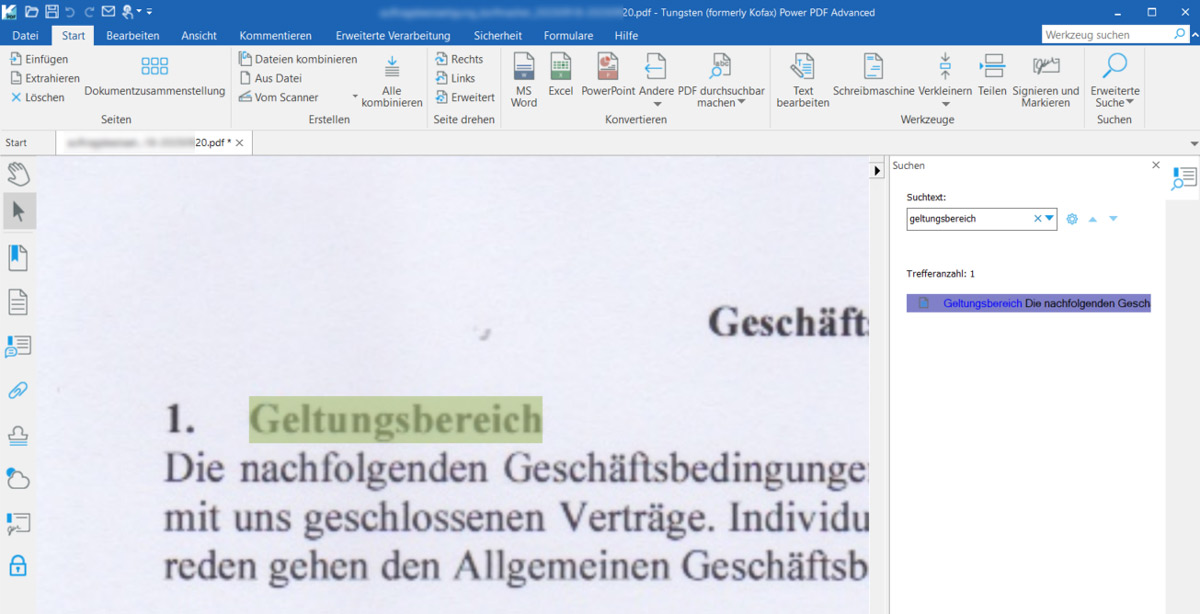
- Insert comments
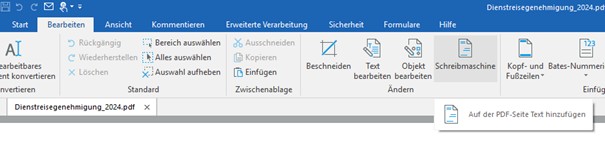
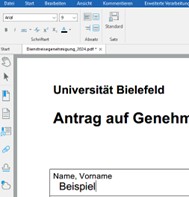
- Add text
- Select and copy text
- Sign documents
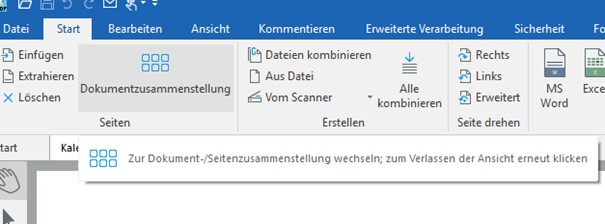
- Merge, delete, rotate pages etc.
2.
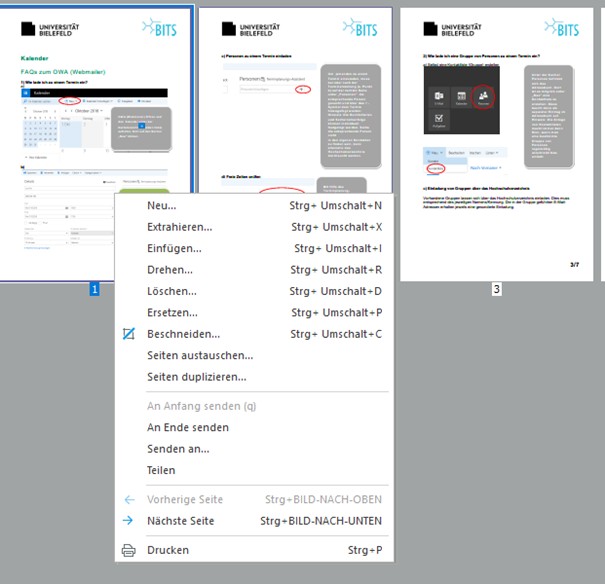
A view with all pages of the PDF document opens. Pages can be deleted, rotated, duplicated and exchanged by right-clicking on the desired page.
Add pages or documents:
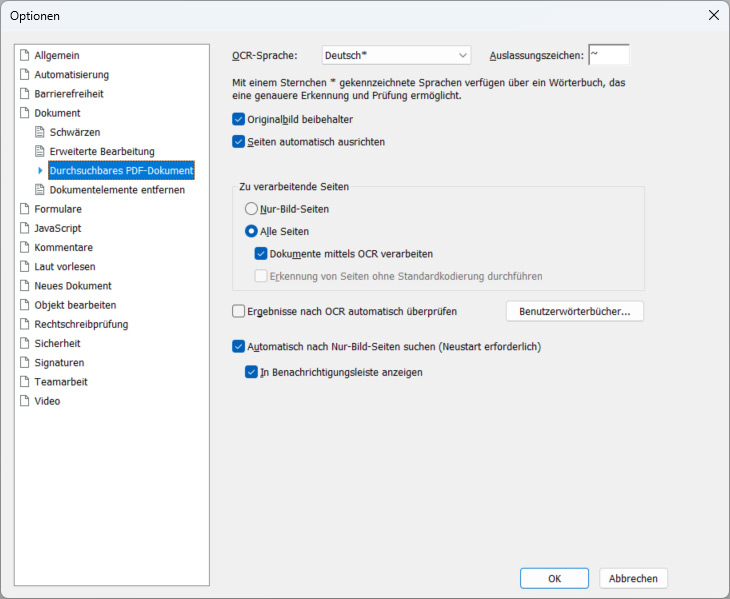
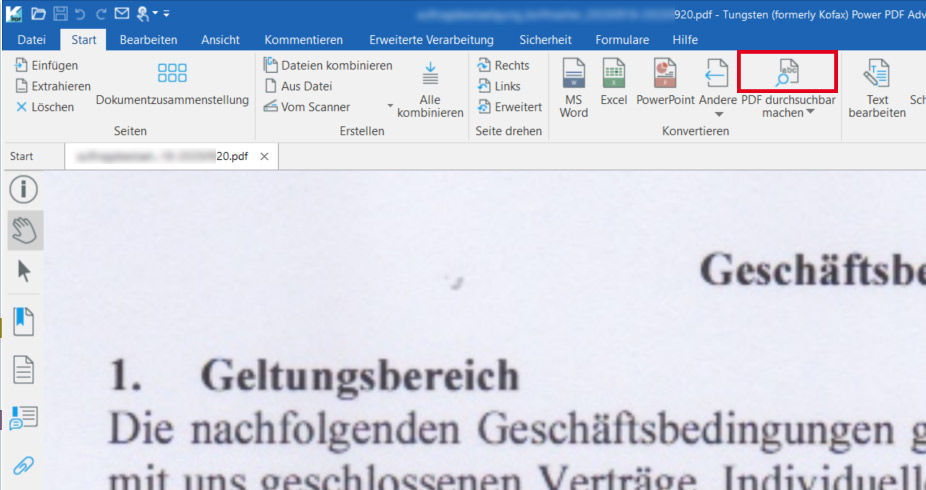
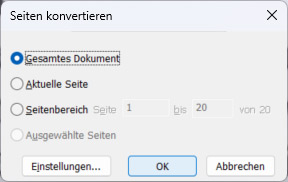
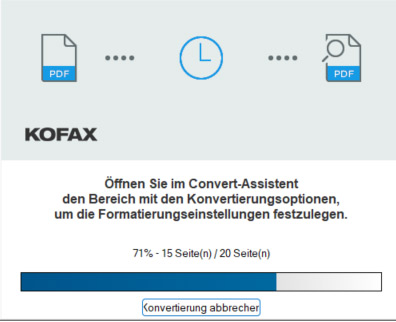
Additional documents (e.g. .docx, .xlsx, .pdf) can be added to the PDF via Insert... or drag & drop. After saving, everything is converted and saved as one document.- Make PDF searchable / configure OCR
- Make PDF searchable / use OCR
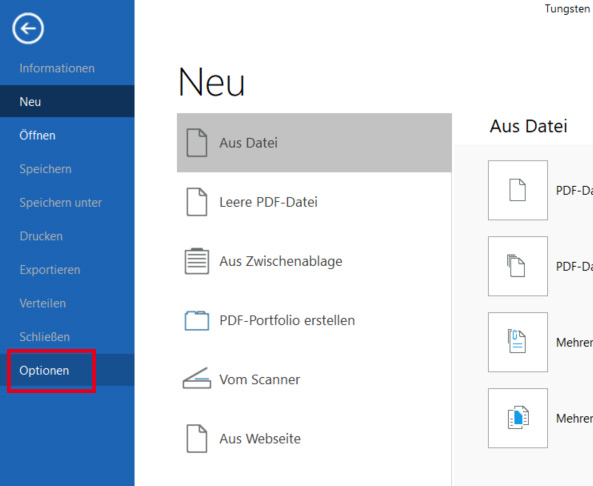
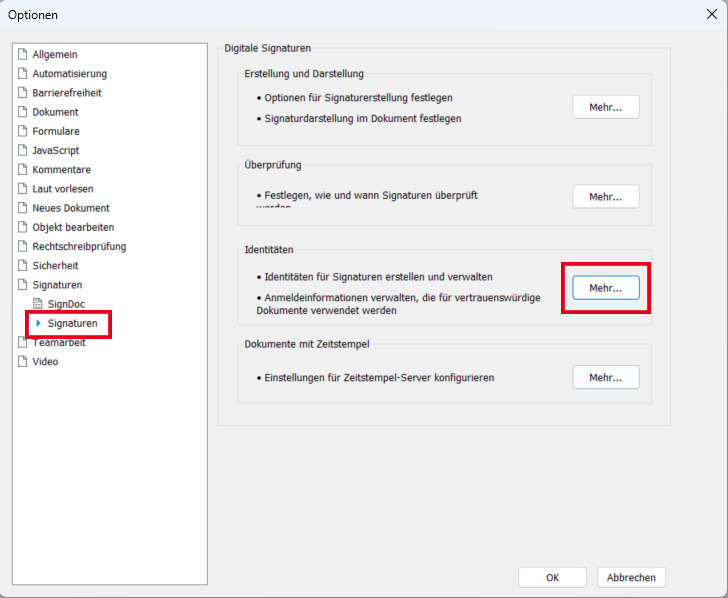
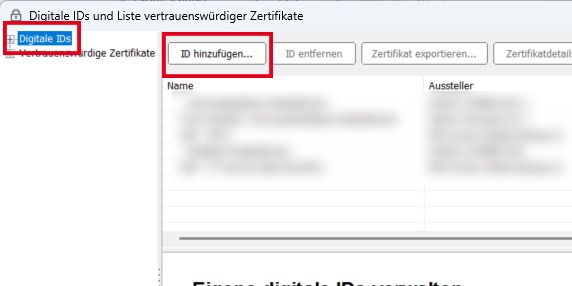
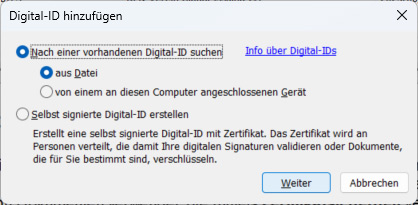
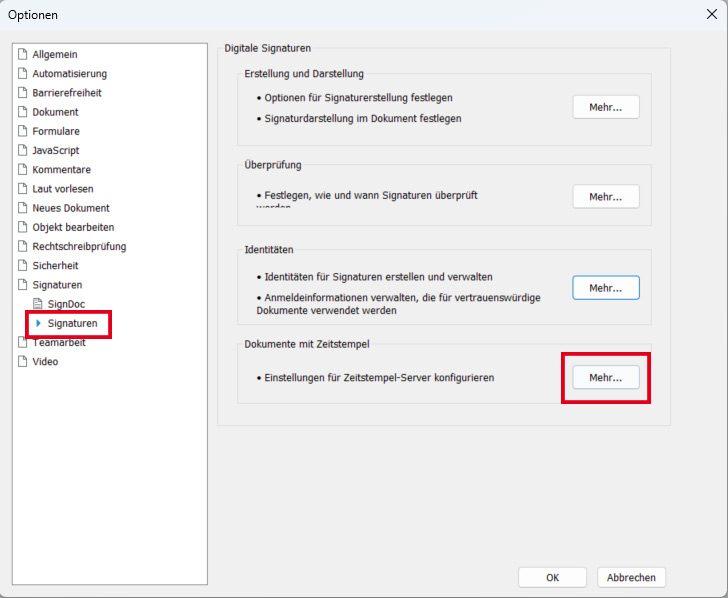
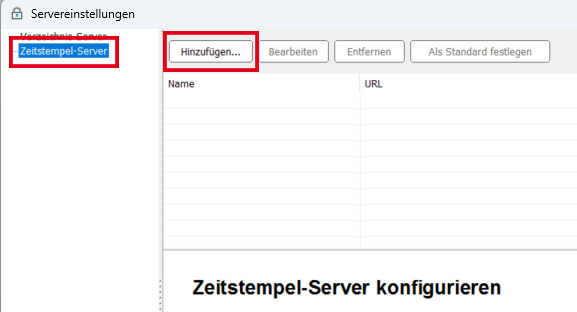
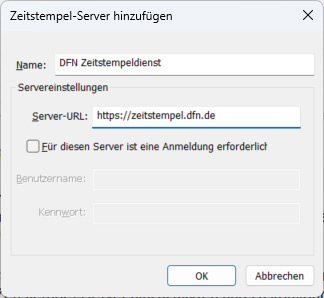
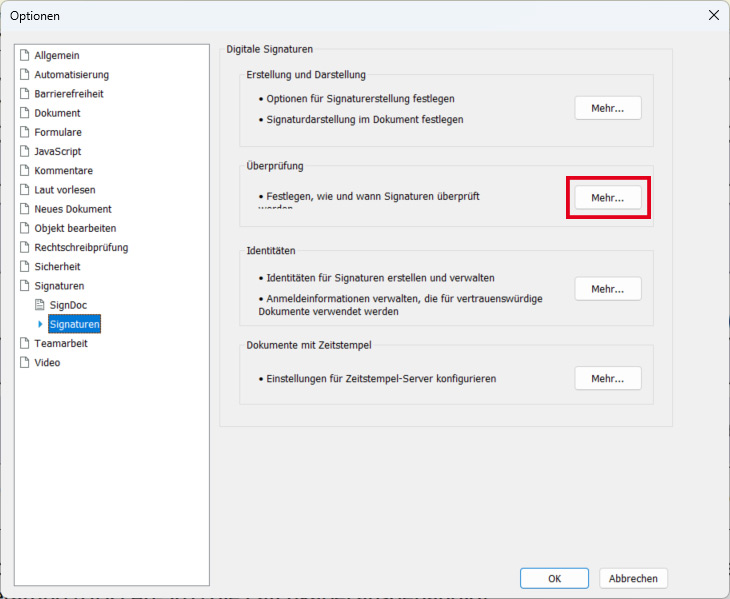
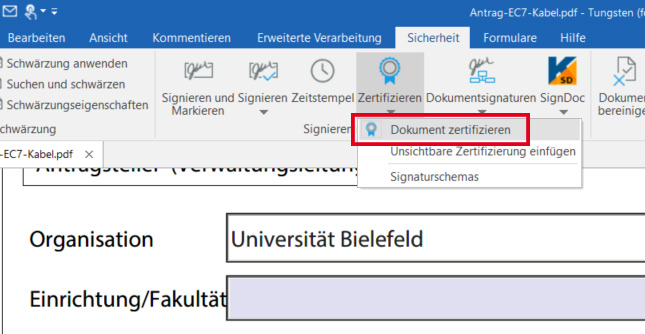
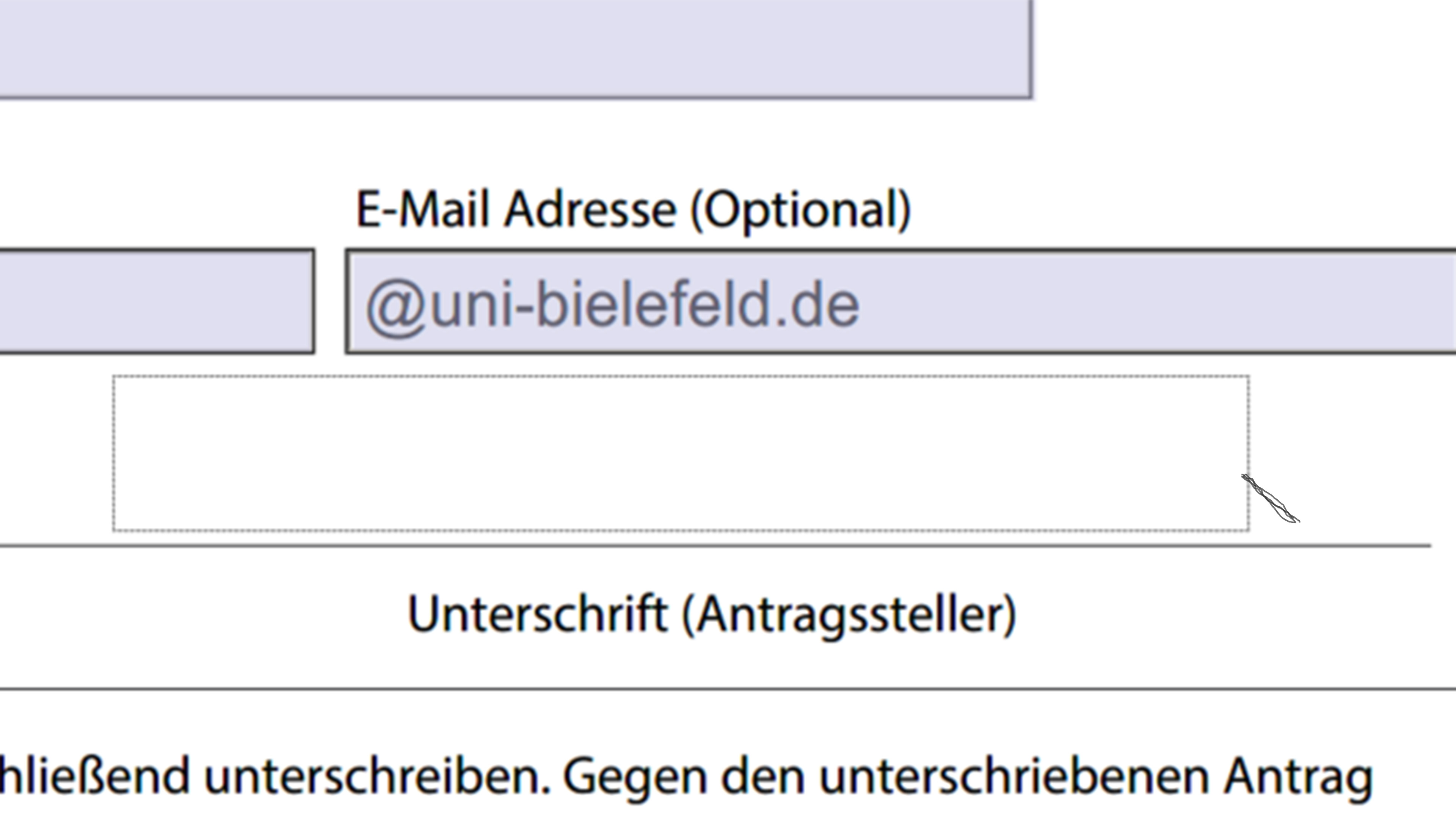
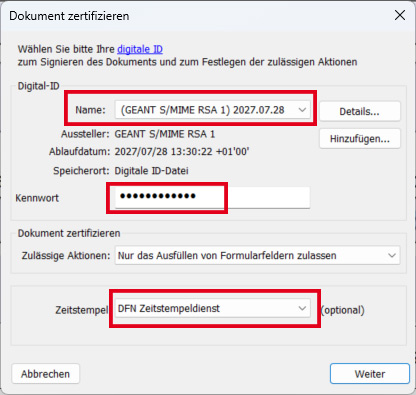
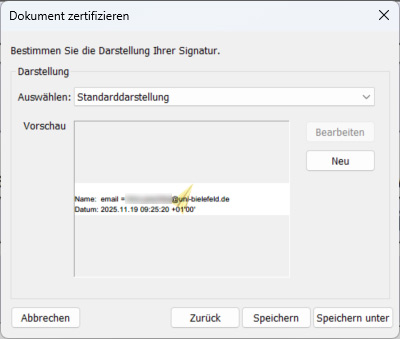
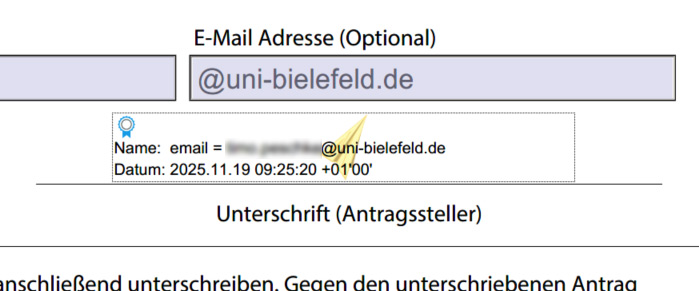
- Configure digital signature
In advance
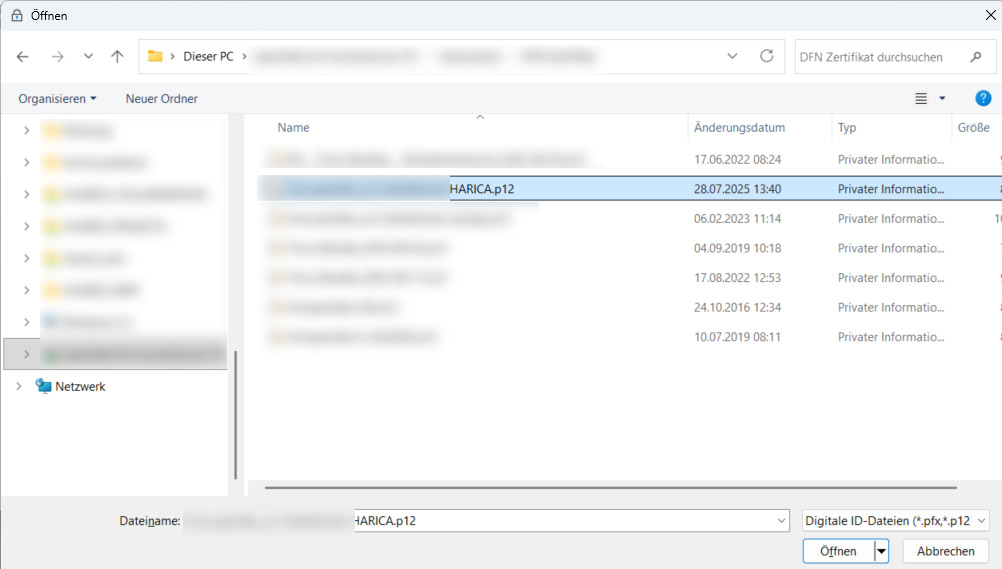
To be able to sign PDF documents digitally with a certificate, a personal, digital certificate must be available (.p12 file).
If required, it can be requested accordingly. The instructions for this can be found in the employee portal.
5.
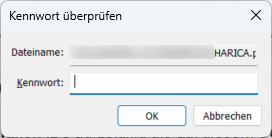
Now open the .p12 file on the computer or network drive.
If this certificate has not yet been imported, the certificate import wizard may open.
- Use digital signature


Description
SPSS Statistics is a modular program package from IBM for the statistical analysis of data. It enables basic data management and extensive statistical and graphical data analysis with the most common statistical methods.
Acquisition
Via the software portal of Bielefeld University.
Employees:
Provision on the workstation computer via the EDP supervisor of the faculty/department or purchase of a single-user license via SAP.
Students:
Purchase of the software for 51€ per license year via the Nexway(asknet) store.
Online registration at:
https://uni-bielefeld.asknet.de
Activation of the portal is only possible after sending the current certificate of enrollment and the application for activation (by e-mail or fax). The activation takes about one day. A confirmation will be sent to the e-mail address provided.
The order of SPSS is only possible after the activation!
The ordered software is available for download within the portal. A data carrier can be ordered separately for an additional charge. The corresponding invoice will be sent by mail. The invoice amount has to be transferred within 21 days to the following account
Description of the
Bielefeld University provides a campus licence for the MAXQDA software for qualitative data analysis for all students and staff.
Acquisition
The following steps must be carried out to activate the licence:
-
Download MAXQDA to a computer.
Download for Windows:
https://www.maxqda.com/download/maxqdademoDownload for macOS:
https://www.maxqda.com/download/maxqdademo-mac -
Execute file and install on computer. Then activate the licence (see below).
Activation
- Activation instructions
1.
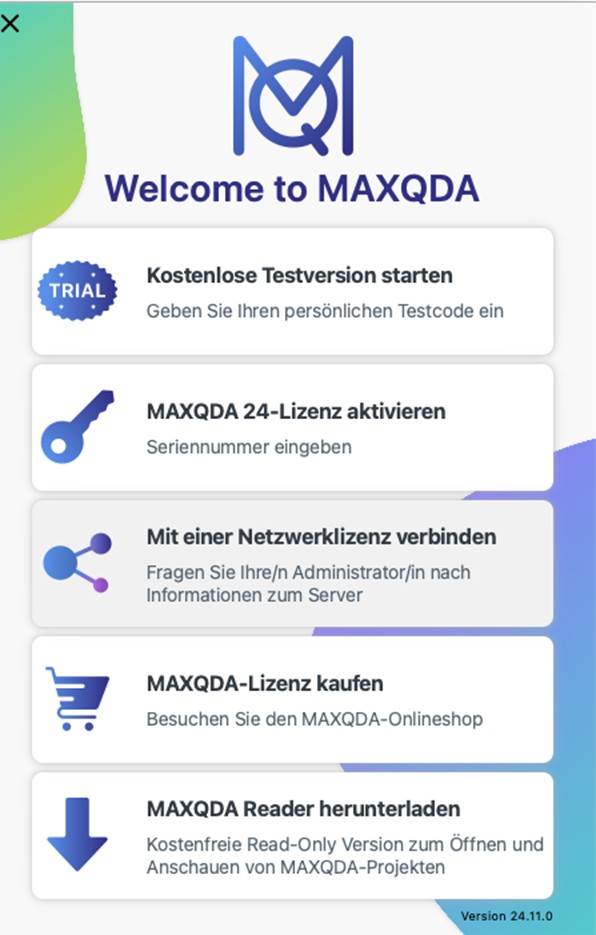
Start MAXQDA after installation and select the Connect to a network licence option in the activation dialogue.
2.
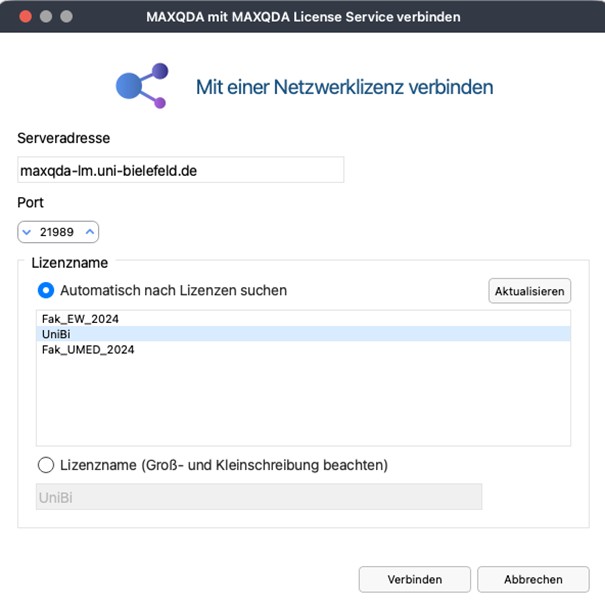
Enter the following data.
Server address:
maxqda-lm.uni-bielefeld.dePort:
21989Then click on Update.
Select the licence with the name UniBi in the list and then click on Connect. The installation is then activated.Important:
The campus licence can only be accessed from the university campus network. There must be a network connection via WLAN eduroam, LAN or VPN.
Description
MindManager is a program that implements the increasingly popular mind mapping strategy for the PC. Especially for brainstorming sessions or project work, the so-called mindmaps (memory maps) have proven to be very useful. MindManager integrates perfectly with MS Office products. Import or export from MS Word and Excel is possible.
Acquisition
Employees:
Provision of campus license on workstation computer through faculty/department IT supervisor*s.
Students:
Since 2010, all students at Bielefeld University have been able to apply for and use the software on the basis of a campus license. Since August 2015, a provisioning fee of 4.99 EUR has been added.
The software can be purchased on the schulnachweis.de site:
Download website [in german]
Description
Origin is an analysis and presentation program for scientific data. In addition to displaying raw data in publishable graphs in 2D and 3D, Origin handles many common analysis techniques.
In December 2007, Bielefeld University purchased an Origin campus license. This license, which is co-financed by student fees, allows all university members to use this software free of charge.
Acquisition
A quick guide to the procedure and the download link can be found at:
https://www.uni-bielefeld.de/fakultaeten/chemie/service/IT/index.xml#tabs-comp_00005d882724_0000000585_3fa6
Description
The Citavi literature management system enables the collection and tracking of references and related information such as notes, summaries and citations as well as the location of the text in the UB or the URL of the full text. Citations and associated references can be inserted into works at the touch of a button, and bibliographies can be generated in any style.
Acquisition
The campus license allows all university members to upgrade from Citavi Free to Citavi Pro (including team functionality) free of charge. Download via http://www.ub.uni-bielefeld.de/library/literaturverwaltung/citavi/#download.
Description
EndNote is an English-language and paid literature management program. Suitable for science, research or teaching, it facilitates formatting citations.
Available for Windows and Mac OS.
Further information at https://www.endnote.de.
Requirements
Support
For students
BITS-Beratung (Support Office)
Room: University Main Building A0-301
Mo.–Fr. 09:30–16:00 h
Tel.: 0521 106-12777
E-mail: bits@uni-bielefeld.de
For employees with a PC workstation provided by BITS
Service Desk
Mo.–Fr. 08:00–16:00 h
Tel.: 0521 106-6000
E-mail: servicedesk@uni-bielefeld.de
For other employees
Decentralised IT support of the faculty or institution.