skip to main contentskip to main menuskip to footer Universität Bielefeld Play Search

Set up WLAN from Android 11 via geteduroam

Switch to main content of the section

Note on Android 13

Some devices with Android 13 may experience problems when setting up with the geteduroam app. A screen lock is requested or "Loss of profile" is displayed. In these cases, eduroam must be set up manually. -> Instructions

Note on Android 8-10

Under the older versions 8-10, a silent notification must be accepted. -> Note on this

Notes

From Android 11, the geteduroam app must be used. Older Android versions continue to use eduroamCAT.

If you have upgraded from Android 10 to 11:

  • Uninstall the eduroamCAT app.
  • Remove the WLAN eduroam from the list of saved WLANs.
     

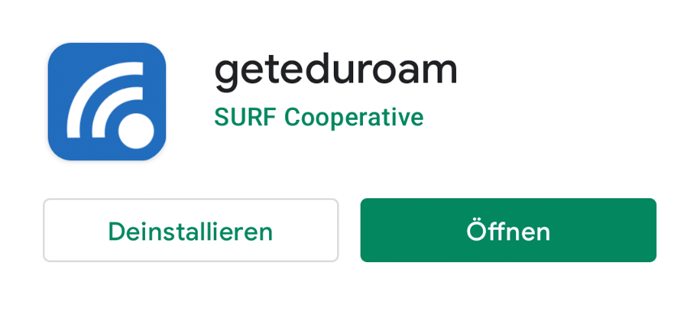
Install geteduroam APP

1.

The first step is to download the geteduroam app from the PlayStore:
https://play.google.com/store/apps/details?id=app.eduroam.geteduroam

All security settings and the certificate are set up automatically via the app.

2.

Then open the app

Configure eduroam via APP

3.

When opening for the first time, search for"Bielefeld" in the search field and select Bielefeld University.

4.

The personal login details are now entered here:

User name:
-> BITS-Loginname@uni-bielefeld.de

Password:
-> BITS password (network password)


Then click on Log in .

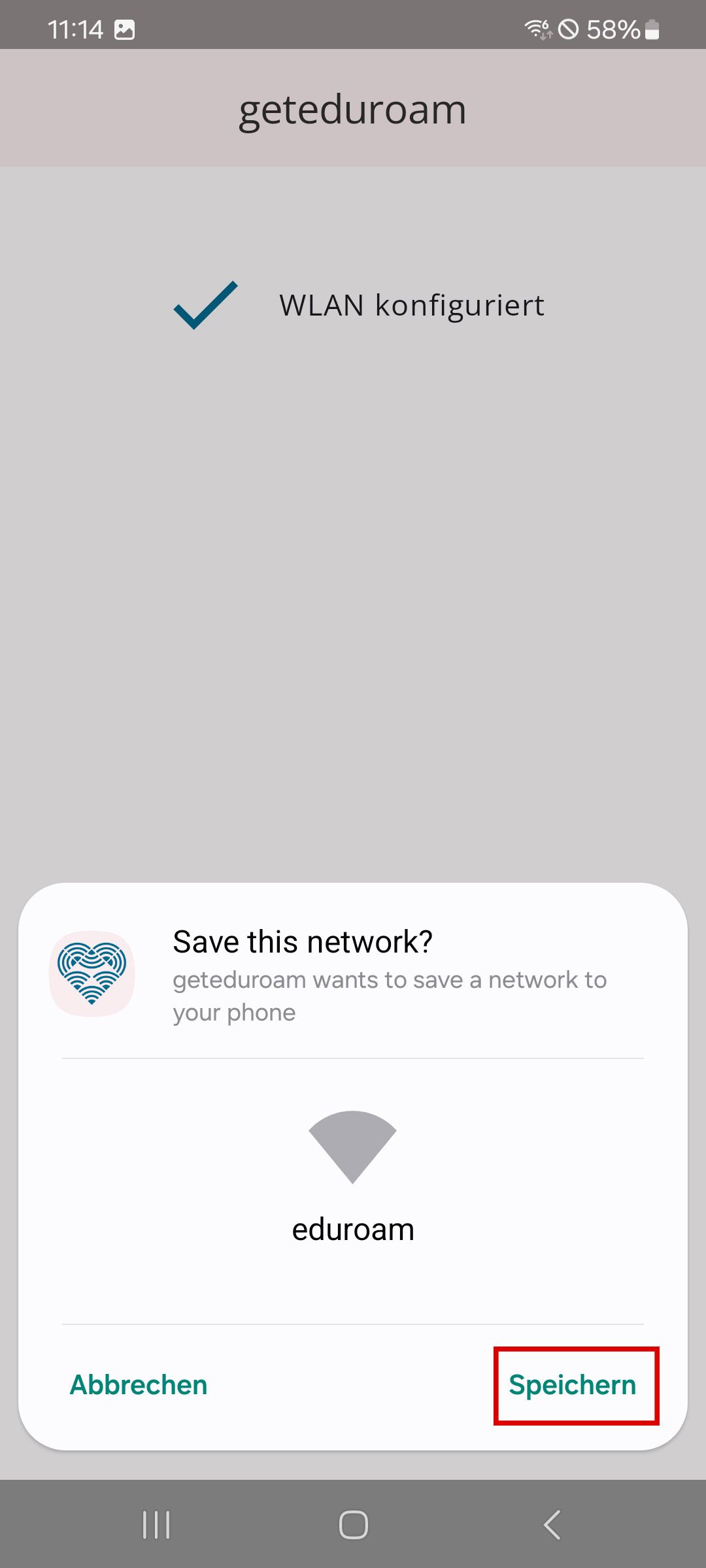
5.

Save the network.

6.

The app can now be closed and the Wi-Fi connection is established.

The app was only used to set up the Wi-Fi. As a rule, the smartphone will automatically connect to eduroam from then on.

Note for older Android versions (8 to 10)

The setup is almost identical to that described above. However, after setting up or reopening the app, there is a silent notification.

To do this, open the notifications (swipe the top display from top to bottom).

Confirm this with Yes .

The connection to eduroam is established.

back to top
Live chat